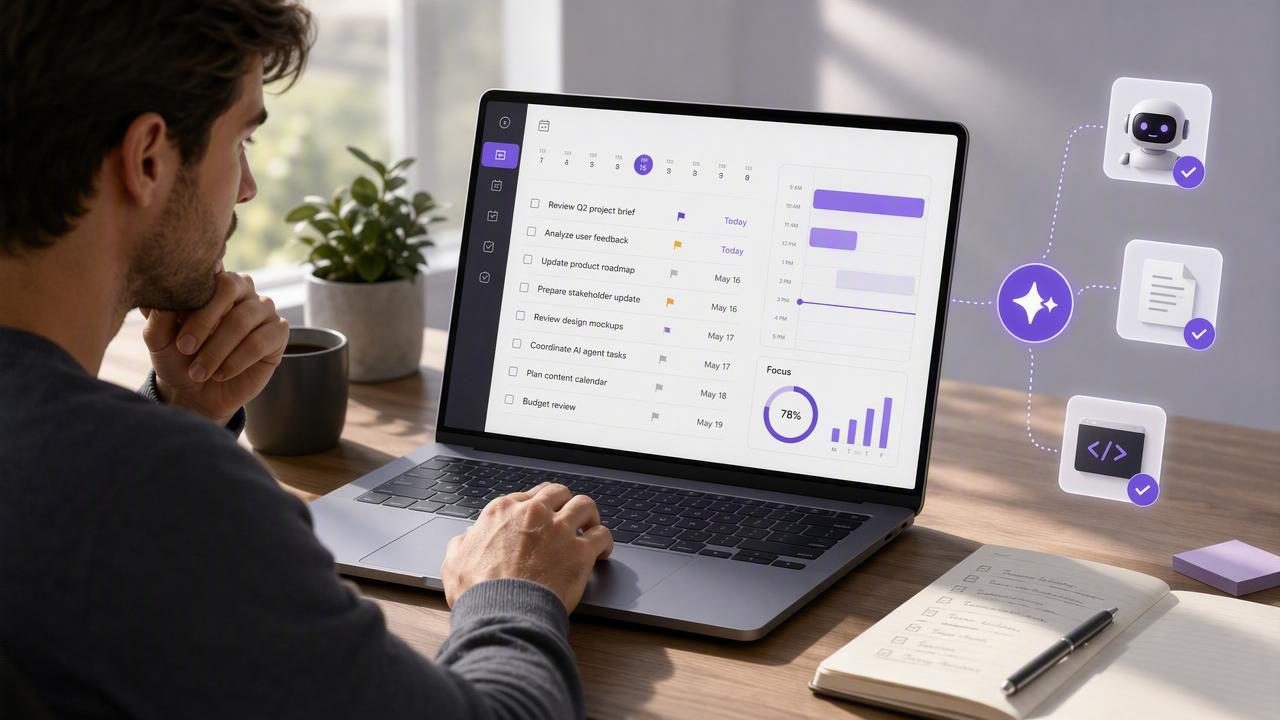
Knowing how to review tasks from a Mac with a daily planner app can turn a busy, reactive workday into a focused one. Your Mac offers the screen space, keyboard shortcuts, and multi-window workflow needed to see every commitment clearly—without losing the simplicity that makes a to-do list useful.
A strong daily review is not about spending an hour reorganizing tasks. It is a short, repeatable process for checking what matters today, identifying overdue work, confirming due dates, and deciding what deserves your attention next. For people who also work with AI assistants or agents, it is also an opportunity to review delegated work before it creates confusion or moves forward without approval.
This guide explains a practical Mac-based task review system, the features to look for in a daily planner app, and how to keep human and AI agent collaboration organized and secure.
Why Review Tasks on a Mac?
Phones are excellent for capturing a thought, checking off a reminder, or adding a quick task while away from your desk. A Mac is better for review. The larger display makes it easier to examine multiple lists, notes, deadlines, projects, and priorities at once. You can quickly move between calendar, email, documents, and your planner without constantly switching contexts on a small screen.
A Mac task review works particularly well when your responsibilities include several projects, recurring routines, deep-work blocks, or delegated tasks. Instead of looking at a flat list of unchecked items, you can assess the full picture:
- Which tasks are overdue and need a decision?
- What is genuinely due today versus merely desirable?
- Which high-priority item will have the greatest impact?
- What can be postponed, broken into subtasks, or delegated?
- Which tasks assigned to an AI agent need review or approval?
The goal is not to complete every task. The goal is to make deliberate commitments for the day.
Set Up a Simple Daily Planner Structure
The best simple to-do lists use enough structure to support decisions, but not so much that maintaining the system becomes another task. Before building a review habit, organize your planner around a few reliable fields: lists, due dates, priorities, notes, and subtasks.
Use Lists for Context, Not Complexity
Lists should answer one question: Where does this task belong? For most people, a short set of lists is enough. For example:
- Work: projects, meetings, follow-ups, and professional deliverables
- Personal: home, health, errands, finances, and family responsibilities
- Someday: ideas that matter but do not need immediate action
- Waiting: tasks blocked by another person, vendor, or agent
Avoid creating a new list for every minor category. Too many lists make reviewing tasks from a Mac slower because attention is spent navigating instead of deciding.
Add Due Dates Only When They Mean Something
Due dates should represent real deadlines, appointments, or time-sensitive commitments. If every task has a due date, your daily planner becomes a stream of artificial overdue items. That makes it harder to spot actual risk.
Use a due date when there is a consequence for missing it. For everything else, rely on priorities, scheduled review, or a next-action list.
Make Priorities Scarce
If everything is urgent, nothing is. A useful approach is to mark only one to three tasks as high priority each day. These are your commitments—not simply the tasks you would enjoy completing.
| Priority level | Best use | Example |
|---|---|---|
| High | Important, time-sensitive, or high-impact work | Send final client proposal |
| Medium | Useful work that should happen soon | Review onboarding notes |
| Low | Optional, routine, or deferrable work | Research new desk accessories |
A 10-Minute Mac Daily Task Review
The most effective routine is brief enough to do every workday. Open your daily planner app on your Mac at the beginning of the day, or at the end of the previous workday if you prefer to start with a plan already in place.
- Open your Today view. Start with tasks due today, scheduled reminders, and overdue items. Do not add new work yet. First understand what is already committed.
- Resolve overdue tasks. Every overdue task needs an action: complete it, reschedule it, delegate it, convert it into a smaller next step, or delete it. Leaving it untouched is rarely a decision.
- Check upcoming due dates. Look ahead several days. This prevents a deadline from appearing as an emergency simply because it was not reviewed early enough.
- Choose your daily priorities. Select one to three high-impact tasks. Put them in an order that reflects your energy and schedule, not just urgency.
- Break down vague work. A task like “Prepare presentation” creates friction. Replace it with clear subtasks such as “Draft outline,” “Collect Q2 metrics,” and “Create title slide.”
- Review waiting and delegated tasks. Confirm whether another person—or an authorized AI agent—has progressed, needs clarification, or has completed work that requires your approval.
- Close with a realistic plan. Estimate the available time around meetings and obligations. Move nonessential tasks out of Today rather than creating an impossible list.
A daily plan is a decision-making tool, not a wish list. A smaller list you can trust is more valuable than a long list that produces guilt.
Use the Mac Screen Space to Review More Effectively
A desktop workflow gives you more ways to reduce task-management friction. Keep your daily planner open beside your calendar during morning planning. If you are preparing for focused work, place your top priority in one window and the supporting document or project materials in another.
Keyboard-first actions can also make a meaningful difference. Look for a planner that lets you quickly create tasks, search across lists, set due dates, adjust priorities, and complete items without repeatedly reaching for the mouse. Fast capture matters because it keeps new requests from interrupting your current task.
Try this layout during your daily review:
- Left side: daily planner with Today, Inbox, and upcoming tasks visible
- Right side: calendar and email for validating time commitments
- Optional second display: project documents, chat, or reference material
This setup helps you avoid a common planning mistake: assigning a full day of tasks without accounting for calls, meetings, travel, or existing commitments.
How to Handle Tasks Delegated to AI Agents
AI task management adds a useful capability: an agent can help turn notes into tasks, organize project steps, research options, draft status updates, or update a shared planner. However, delegation only works when task ownership and permissions are clear.
During your Mac review, keep delegated tasks visible and treat them like work assigned to any collaborator. A task should indicate what the agent is expected to do, what success looks like, and whether a human must approve the result before the task is marked complete.
For example, instead of assigning “Plan product launch,” use a more specific task structure:
- Task: Draft product launch checklist
- Notes: Include messaging, web updates, support preparation, and launch-day monitoring
- Due date: Friday
- Owner: AI research and draft support
- Approval: Human review required before completion
This creates a clean handoff. The agent can contribute useful work while you retain judgment over priorities, sensitive decisions, and final status.
Apply Least-Privilege Permissions
When connecting an AI tool to a task manager through MCP or another supported integration, use least-privilege permissions. Give the agent only the access required for its job. A research agent may need read-only access to selected project tasks. An operations agent that updates checklists may need read and write access, but only if that capability is necessary.
Separate, revocable agent tokens are safer than sharing a personal account credential. They also make it easier to stop access when an experiment ends, an agent changes roles, or a token may have been exposed.
| Agent workflow | Recommended access | Human review point |
|---|---|---|
| Summarize open tasks | Read only | Before priorities change |
| Draft subtasks from a project brief | Read and write | Before assigning dates or owners |
| Update recurring checklist items | Read and write | Review completion and exceptions |
| Analyze personal workload | Read only, limited lists | Before any schedule changes |
End the Day With a Short Reset
A daily planning system improves when you also spend five minutes reviewing it before ending work. Mark completed tasks, capture unfinished thoughts in an inbox, and decide what moves to tomorrow. Do not blindly reschedule every incomplete item. Ask whether it still matters, whether it needs a different next action, or whether it should be removed.
This closing review prevents your next morning from beginning with a cluttered list. It also gives you a reliable record of what was completed, what changed, and what requires follow-up.
Choose a Daily Planner That Supports Your Workflow
When evaluating a daily planner app for iPhone, iPad, and Mac productivity, prioritize clarity over feature volume. The essentials are fast task capture, lists, subtasks, notes, due dates, reminders, priorities, dependable sync, and a desktop interface that makes review easy.
If AI agent workflows are part of your process, also look for granular access controls, separate revocable tokens, and clear read-only versus read-and-write permissions. These features let you gain the benefits of Claude, ChatGPT, Hermes Agent, or OpenClaw integrations without giving every tool unrestricted control over your task list.
A planner such as TaskPort can support this shared-source-of-truth approach by keeping personal planning and authorized agent collaboration in one organized workspace.
Make Task Review a Habit, Not a Project
The best way to review tasks from a Mac with a daily planner app is to keep the ritual simple: check commitments, resolve overdue work, select a few priorities, clarify next actions, and review delegated tasks. Done consistently, this process makes your to-do list trustworthy again.
You do not need a complicated productivity system. You need a clear view of your work and a brief daily moment to decide what deserves your attention.
