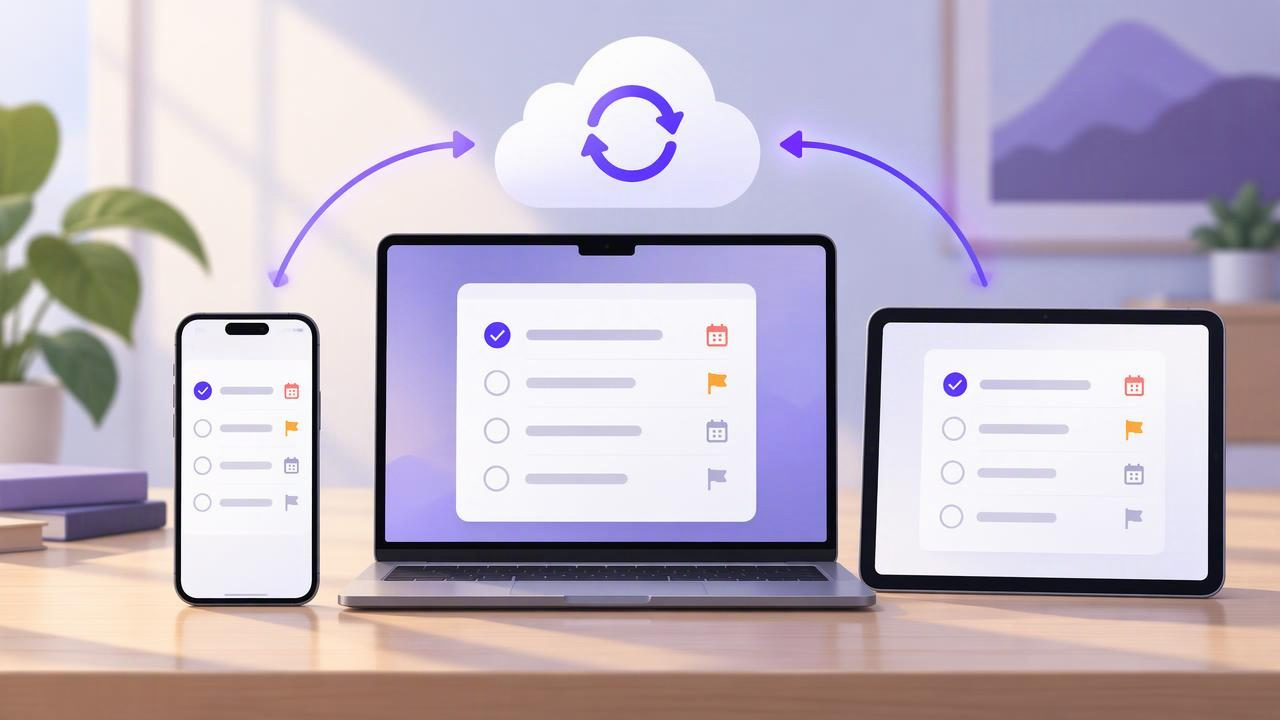
A task list is only useful when it reflects what you need to do now. If you add a reminder on your iPhone, review it on your iPad, and finish it on your Mac, each device should show the same current information. When lists drift apart, you can miss a deadline, repeat completed work, or waste time deciding which version is correct.
To sync tasks across iPhone, iPad, and Mac reliably, choose one task app and account as the source of truth, confirm that each device is connected to that same account, and make a small test before moving your whole workflow. Then decide how you will handle due dates, notifications, shared access, and occasional offline work. These steps help whether you use a built-in reminders app or another task manager.
What task syncing should—and should not—mean
In a synchronized task system, changes made on one device become available on the others through the app’s sync service. That can include task titles, completion status, notes, lists, due dates, or priorities, depending on the app. Do not assume every field syncs simply because the task name does; check the app’s documentation and test the information you rely on.
Syncing is also different from notifications. A due date might appear on all your devices while an alert is configured, delivered, or dismissed separately. Likewise, a task being visible on your iPad does not necessarily mean it is stored for offline use. Treat task data, reminders, and offline access as related but distinct parts of the setup.
Start with one source of truth
Before adjusting settings, decide where the authoritative version of your tasks will live. A common source of confusion is using one app for quick capture on a phone, a different app for planning on a computer, and a third list shared with a colleague. If each system holds a separate copy, syncing devices cannot make those copies agree.
Choose one main app for active work. You can still use other tools for notes or calendars, but be explicit about which one owns task status. For example, if you mark a task complete in your task manager, avoid maintaining a second checklist that must also be updated by hand.
Check the account on every device
- Open the task app on your iPhone, iPad, and Mac.
- Check the signed-in account or sync settings in each app. Confirm that they point to the same account and service.
- Look for the same test list and a few recognizable tasks on each device.
- If an item is missing, check whether it was created in a local-only list, another account, or a different workspace.
Using the same Apple device owner or the same device name does not, by itself, prove that a third-party app is signed in to the same task account. Verify inside the app rather than relying on assumptions.
Run a small sync test before relying on it
A quick test can reveal account and field differences before you depend on the setup for work. Create a harmless task called “Check cross-device sync,” add a short note, set a test due date, and assign a priority if the app supports one. Save it on your iPhone. Then open the same list on your iPad and Mac and check which details appear.
Next, edit the note on the iPad and complete the test task on the Mac. Reopen the list on your iPhone and see whether those changes arrive. Repeat with the app open and, if useful, after reopening it. This does not prove that syncing will be instantaneous in every condition; it confirms that your account and the fields you tested work across your devices under those conditions.
| Test | What to check |
|---|---|
| Create on iPhone | Does the task appear on iPad and Mac? |
| Edit on iPad | Does the updated note or title appear elsewhere? |
| Complete on Mac | Does the task show the same status on the other devices? |
| Set a due date | Does the date and, if relevant, its time display as expected? |
Make lists and dates easy to interpret
Good synchronization cannot fix unclear task design. Use list names that indicate the kind of work, such as “Work,” “Home,” or “Waiting,” and write task titles that describe an action. “Send revised budget to Lee” is easier to recognize on a small phone screen than “Budget.” Keep notes for useful context, but put the next action in the title when possible.
Due dates need particular care. Decide whether a date means “must be finished by this point” or “work on this day,” and use times only when a time matters. If you travel or collaborate across time zones, check how the app displays timed tasks on each device. A date that looks correct on one screen can be misleading if the time or time zone is not clear.
Priorities are most useful when their meaning stays consistent. For example, reserve the highest level for work that truly needs attention first, rather than marking every task urgent. If the app does not support priority fields, use a clear naming or list convention instead of assuming that a task’s position will communicate urgency everywhere.
Keep reminders useful across devices
Decide which device should alert you and when. Multiple devices may be able to show notifications for a task, but the behavior depends on the app, operating system settings, and notification configuration. After the sync test, create a low-stakes reminder and confirm what happens on the devices you use. Review notification permissions and alert settings if you do not receive an expected prompt.
A reminder is not a substitute for a reliable task list. If an alert is missed, dismissed, or unavailable while a device is offline, the task should still be findable in its list. Keep due dates accurate and review upcoming work during a daily planning session rather than depending solely on notifications.
Understand offline use and conflicting edits
Device syncing usually depends on a connection to the app’s sync service at some point. Some apps may allow changes while offline and send them later; others may limit access or behave differently. Check the specific app’s offline guidance before relying on it during travel, in areas with weak service, or during a network outage.
If two devices edit the same task before either change has synchronized, the final result can depend on the app’s conflict-handling rules. Do not assume that every edit will be merged or that the newest-looking screen is authoritative. For important work, avoid editing the same item simultaneously on multiple devices. Once connected, compare the task’s title, notes, due date, and completion status.
When something appears out of date, avoid immediately creating a replacement task. First check the network connection, account, selected list, and sync status. Refresh or reopen the app according to its normal guidance, then search for the original task. Duplicate copies can make the source-of-truth problem worse.
A practical daily workflow across three devices
Imagine you are coordinating a small product launch. On the iPhone, capture “Ask design for final screenshots” as soon as you remember it. On the iPad, review the launch list and add context about the required image sizes. On the Mac, mark the task complete after the files arrive. If the app syncs those changes, each device can show the same task state without maintaining three separate checklists.
Use each device for convenience, not as a separate version of the plan. At the start of the day, review the main list on the screen that suits you and choose a realistic set of priorities. During the day, capture new work wherever you are. Before ending the day, check that completed tasks are marked done and that dated tasks still have sensible dates.
- iPhone: Capture quick tasks and check what is next while away from your desk.
- iPad: Review lists and add detail when you want more room to plan.
- Mac: Update task status while working at your computer and review the broader task list.
These are suggested habits, not technical restrictions. You can plan on any device; consistency comes from using the same shared list and checking that changes sync.
When an AI agent also works with your tasks
If an authorized AI agent can read or change tasks, it becomes another participant in the shared workflow—not another device that should hold an independent copy. Keep the task app as the source of truth, give the agent only the access it needs, and review changes that affect deadlines or commitments. A filtered view of a list is not necessarily a security boundary, so do not treat a list filter as a substitute for permissions.
TaskPort provides a shared task space for people and authorized agents, with account-scoped tokens offering Read Only or Read & Write access. If you use it, review the agent permission guidance before granting access. Separate, revocable tokens and least-privilege choices can help you control agent access, but they do not make every task change automatically correct; keep human review in your workflow.
Quick troubleshooting checklist
- Only one device shows a task: Verify the account, list, and whether the task was saved locally.
- A change has not appeared: Check connectivity and the app’s sync status, then reopen the app before editing a duplicate.
- The date looks different: Check whether it is an all-day date or a timed reminder, and review time-zone display.
- Alerts are missing or repeated: Review notification settings on the relevant devices; task sync and alert delivery are not identical.
- Two versions exist: Compare their notes and status, keep the authoritative item, and remove duplicates only after confirming you will not lose useful information.
Build a dependable cross-device routine
Reliable task syncing starts with one source of truth, the same account on each device, and a test of the fields you depend on. Clear list names, meaningful due dates, consistent priorities, and a quick daily review make the synced information easier to trust. Remember the limits: sync can depend on connectivity and app behavior, notifications can differ by device, and simultaneous edits may need checking.
Once the setup works, keep the system simple. Capture tasks wherever convenient, review them in one shared list, and use your iPhone, iPad, and Mac as different windows onto the same plan—not as three separate plans.
