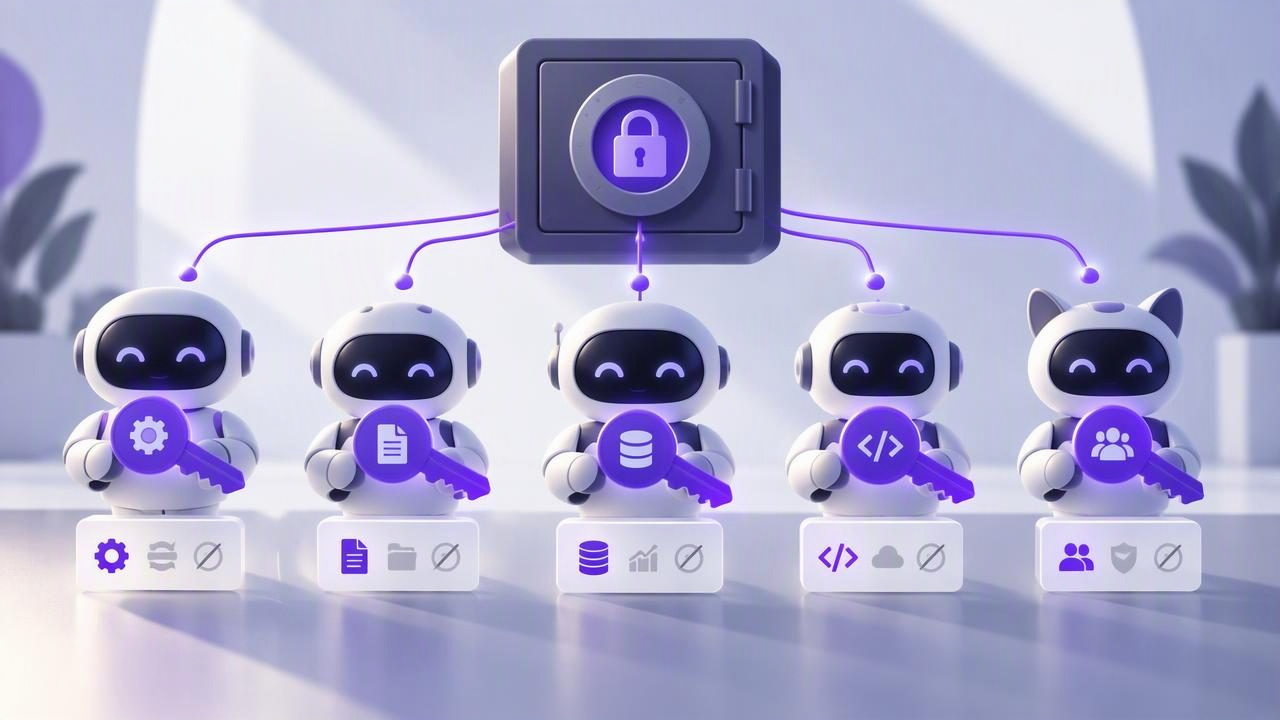
If you use more than one AI agent to manage tasks, sharing a single access token between them can make your workflow harder to control. Separate tokens give each agent its own credential, so you can choose permissions independently and revoke one agent’s access without having to replace every other agent’s token.
That separation is useful, but it has an important limit: a separate token does not automatically mean access is limited to a separate list. Before setting up agents, check what a token actually controls, choose the least powerful permission that works, and keep a simple record of which credential belongs to which agent.
What does it mean to separate tokens?
Token separation means issuing a different access credential for each agent or agent connection instead of reusing one credential across several tools. For example, you might create one token for a planning agent and a second for an agent that helps update task details.
Each credential can then be managed separately. If you stop using one integration, you can revoke its token without deliberately disrupting the others. Separate tokens also make it easier to identify which connection needs attention when you review your setup.
However, separation is not the same as isolation. If credentials are scoped to the same account, each may reach the same account-level data, subject to its permission level. Token separation gives you distinct credentials and independent permission choices; it does not necessarily create separate data compartments.
Start by checking the token’s scope
Before creating credentials, find out whether the system scopes tokens to an account, a workspace, a project, or another boundary. Read the integration documentation rather than inferring scope from a token name, a list selector, or the agent’s instructions.
For an account-scoped setup, assume that a token can access account data allowed by its permission level. A list_id filter may help an agent focus on one list, but a filter is not an authorization boundary. It does not, by itself, prevent the credential from accessing other account data.
This distinction matters when you delegate work. Asking an agent to use only the “Launch” list is a workflow instruction. It is not equivalent to a technical permission that blocks access to every other list. If an agent must not see certain information, do not rely on a prompt or filter to enforce that restriction.
A practical example: two agents, two tokens
Imagine you use one agent to review your day and another to help maintain tasks after meetings. You want the first agent to inspect due dates and priorities, while the second may need to make changes. A safer starting point is to create two separate tokens and assign permissions based on each agent’s actual job.
| Connection | Example purpose | Permission to consider | Important limit |
|---|---|---|---|
| Daily planning agent | Summarize due tasks and help identify priorities | Read Only | It may still read account-level data within its authorized scope |
| Meeting follow-up agent | Add or update follow-up tasks when authorized | Read and Write, only if needed | Write access is not limited to one list merely by using a list filter |
The table is a permission-planning example, not a promise that every integration offers those exact controls or that either credential is restricted to a particular list. Check the documentation for the task manager and the agent you connect. If the required access boundary is not supported, narrow the workflow or avoid giving that agent access to sensitive account data.
Choose permissions by task, not by convenience
Use Read Only when an agent needs to inspect tasks, notes, due dates, or priorities but does not need to change them. It is a good starting point for summarizing the day, finding overdue work, or suggesting a plan for your review.
Use Read and Write only when the agent has a clear reason to create or change task data. Examples might include adding a follow-up task you have approved or updating a due date as part of a workflow. Consider whether the agent should ask for confirmation before making consequential changes, even if its token permits writing.
Least privilege means granting only the access necessary for the job. It does not mean choosing Read Only in every situation, regardless of the work. Instead, define the task first, select the narrowest available permission that supports it, and review whether the agent’s role changes over time.
Set up one credential at a time
- List your agents and their jobs. Write down what each agent should read or change. Avoid vague roles such as “manage my tasks.”
- Check the documented scope. Confirm whether the credential is account-scoped and what Read Only or Read and Write permits.
- Create a distinct token for each connection. Do not copy one agent’s token into another agent’s configuration just to save setup time.
- Choose permissions deliberately. Start with read access when it is sufficient. Grant write access only when the workflow requires it.
- Connect the token using the supported setup instructions. Do not guess endpoints or use undocumented connection methods.
- Test with a low-risk task. For a read-only agent, check that it can perform its intended review. For a write-enabled agent, verify its behavior with a harmless task before relying on it for important updates.
- Record and review the connection. Keep a private inventory of the agent, token purpose, permission, and date created. Update it when agents or workflows change.
Keep a clear token inventory
A small inventory prevents the common problem of finding several credentials later and not knowing which one is safe to remove. Store the inventory somewhere appropriate for sensitive operational notes, but do not put the token value itself in a plain-text document, a shared prompt, or a task description.
| Inventory field | What to note |
|---|---|
| Agent or connection | A recognizable name, such as “daily review agent” |
| Purpose | The specific task the connection supports |
| Permission | Read Only or Read and Write |
| Scope | The documented account or other access boundary |
| Review note | When to check whether the token is still needed |
Use names that help you identify a credential without exposing its secret value. If your setup offers a label field, use a descriptive label. Otherwise, maintain the mapping in your private inventory rather than assuming the credential itself communicates its purpose.
Revoke access when an agent is no longer needed
When you stop using an agent, revoke its token through the supported account controls. Do not rely only on deleting the agent’s configuration: the credential may still exist and remain usable until it is revoked. If a token may have been exposed, treat it as compromised and revoke it promptly.
After revocation, check that the intended connection can no longer use that credential, following the service’s documented process. If another agent stops working, verify that it has its own active token rather than replacing all credentials with one shared token. Separate credentials make that diagnosis more manageable.
Common mistakes to avoid
- Reusing one token everywhere: This makes it harder to revoke one integration independently.
- Assuming a name creates a permission boundary: Naming a token “read launch list” does not restrict its access to that list.
- Treating a list filter as security: A
list_idfilter can guide a request, but it is not an authorization control. - Granting write access preemptively: An agent that only summarizes tasks does not need to change them.
- Storing secrets in prompts or task notes: Keep credentials in the supported configuration mechanism, not in ordinary content shared with agents.
- Forgetting old connections: Review your inventory and revoke credentials that are no longer required.
What separate tokens can—and cannot—do
Separate tokens are a practical way to distinguish agent connections, choose permissions for each connection, and revoke access independently. They support clearer human and AI agent collaboration when each agent has a defined role and the permissions match that role.
They cannot make an account-scoped token list-specific if the documented permission model does not provide per-list authorization. Nor can a prompt reliably enforce access limits that the token itself does not enforce. For sensitive data, confirm the actual boundary before connecting an agent, and do not grant access on the assumption that a filter provides isolation.
If you are configuring a shared task workflow, review the permission model before connecting agents such as Claude, ChatGPT, Hermes Agent, or OpenClaw. For example, TaskPort’s agent permission documentation explains the available permission choices and their scope. The same principle applies to any MCP task manager: use a separate credential for each connection, grant only the access its work requires, and know what that credential can actually reach.
