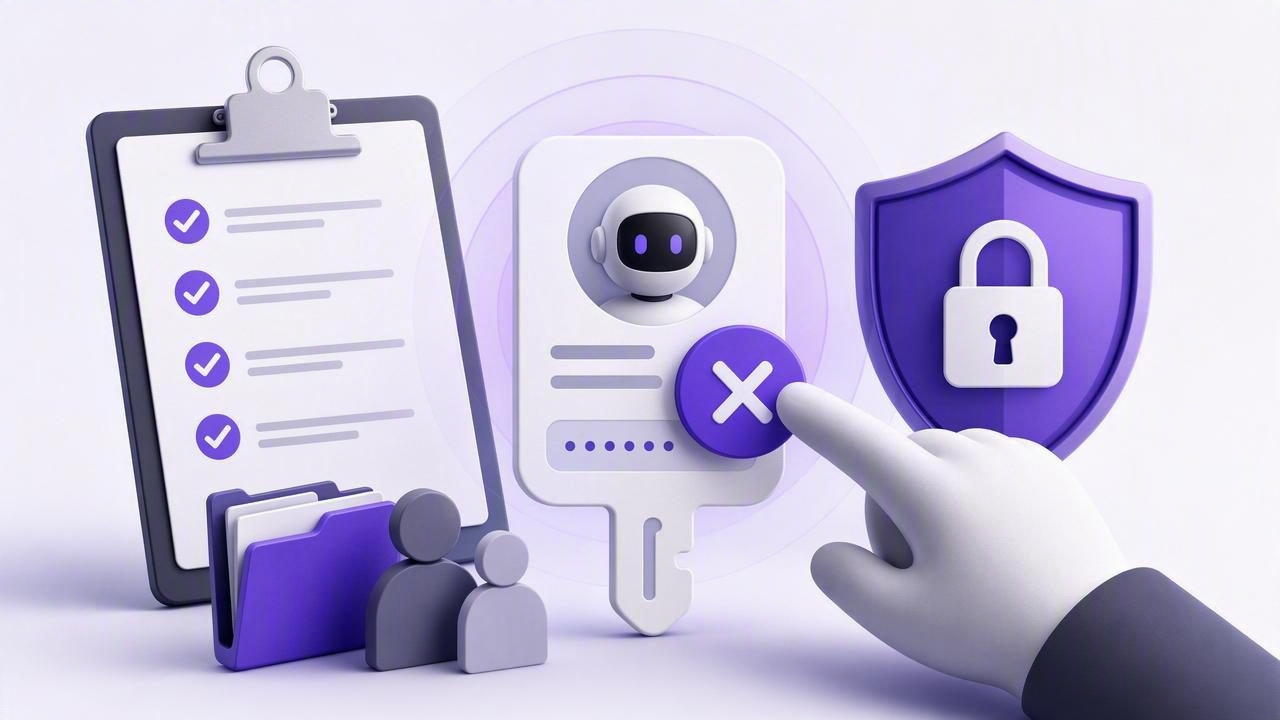
AI agents can help with daily planning, task delegation, reminders, and routine project updates. But an agent should only have access for as long as it needs it. Whether you connected an assistant to organize a launch checklist, review overdue tasks, or create subtasks from meeting notes, knowing how to revoke an agent token is a core part of secure AI task management.
This guide provides a practical revoke-an-agent-token checklist for anyone using an AI agent task manager. It explains when to revoke access, what to review beforehand, how to confirm that revocation worked, and how to maintain a safer human-and-agent workflow over time.
What Is an Agent Token in an AI Task Manager?
An agent token is a credential that lets an authorized AI agent connect to a task manager through an integration interface, such as the Model Context Protocol (MCP). Instead of sharing your main account password, you can issue a separate token for an individual agent or workflow.
Depending on the permissions you assign, an agent token may allow an AI assistant to:
- Read tasks, lists, due dates, priorities, and notes
- Find overdue or upcoming work
- Create new tasks and subtasks
- Update task status, dates, or priority levels
- Organize tasks into project lists
- Add planning suggestions or follow-up items
Tokens are useful because they create a clear boundary between your personal account and an agent’s access. They are also more manageable than broad, permanent connections. If a workflow ends, an agent changes, or you suspect a token was exposed, you can revoke that token without disrupting your entire task system.
Why Token Revocation Matters
Revocation removes an agent’s ability to use a specific credential. In a shared human-and-AI task workflow, that is essential for maintaining least-privilege permissions: each agent receives only the minimum access needed for a defined purpose and a limited period.
For example, a read-only agent may need to summarize your weekly priorities, while a read-and-write agent may need temporary access to create tasks from a project brief. Once that work is complete, leaving the token active creates unnecessary exposure.
Good AI task management is not only about what an agent can do. It is also about knowing when that agent should no longer be able to do it.
Revoking tokens can reduce the impact of accidental sharing, compromised devices, abandoned automations, staff changes, and experiments that become forgotten connections.
When Should You Revoke an Agent Token?
You do not need to wait for a security incident. Revocation should be a normal part of task delegation and agent lifecycle management. Consider revoking a token in the following situations:
- A project is complete: The agent no longer needs to access the project list or related tasks.
- You are changing agents: You are moving a workflow from one compatible assistant to another.
- An employee, contractor, or collaborator leaves: Any agent connection created for that person’s workflow should be reviewed.
- A token may have been exposed: It appeared in a screenshot, shared document, chat, public repository, or unsecured note.
- An agent behaves unexpectedly: It creates incorrect tasks, changes priorities, or accesses information beyond its intended scope.
- You are narrowing permissions: A read-and-write workflow now only needs read-only access.
- You are cleaning up old automations: The token belongs to a test integration or an inactive routine.
A simple rule helps: if you cannot clearly explain why an active token is still needed, revoke it and create a new one later only if required.
Revoke an Agent Token Checklist
Use this checklist whenever you retire, replace, or investigate an AI agent connection. The exact settings may differ between task managers, but the process remains broadly the same.
1. Identify the Exact Token and Its Owner
Start by locating the relevant token in your task manager’s integration or security settings. Confirm the token name, the AI agent or client using it, when it was created, and its most recent activity if that information is available.
A useful naming convention makes this step much easier:
agent:claude-weekly-review:read-only
agent:chatgpt-launch-plan:read-write
agent:research-assistant:product-backlog:temporary
Names should describe the agent, purpose, permission level, and, where useful, the related project. Avoid vague labels such as “token 2” or “AI integration.”
2. Check What the Agent Can Access
Before revoking, review the token’s scope. Does it apply to every list in your task manager, one project, or a selected group of tasks? Can it only read information, or can it create, edit, complete, and delete tasks?
| Permission level | Typical use | Revocation priority |
|---|---|---|
| Read Only | Weekly summaries, planning analysis, due-date reviews | High when the review ends or data is sensitive |
| Read and Write | Creating tasks, organizing projects, updating routine workflows | Immediate if the workflow ends or behavior is unexpected |
| Broad project access | Cross-list planning or operational coordination | Review frequently and replace with narrower scope when possible |
Read-and-write tokens deserve extra attention because an agent may alter tasks, dates, priorities, or completion states. If you are unsure whether access is still appropriate, revoke first and assess later.
3. Preserve Any Work You Need
Revocation stops future requests; it does not necessarily undo changes an agent has already made. Before disabling access, review recent tasks, notes, subtasks, and status changes associated with the workflow.
Look for unfinished work such as:
- Tasks the agent created that need a human owner
- Subtasks that require due dates or priority adjustments
- Draft planning notes that should be moved into a permanent project brief
- Recurring reminders that should remain after the agent connection ends
- Tasks that were incorrectly completed, moved, or deprioritized
This review prevents a common problem: revoking a token successfully but losing track of the operational work the agent was helping manage.
4. Revoke or Delete the Token
In the relevant agent, integration, API, or MCP token settings, select the credential and choose Revoke, Disable, or Delete. Use the option that immediately invalidates the credential rather than merely hiding it from a list.
If your platform distinguishes between disabling and deleting, disabling may be appropriate for a brief investigation. However, deletion or permanent revocation is typically the better choice for exposed credentials, completed projects, or retired agents.
5. Confirm the Token No Longer Works
Do not assume a button click is the end of the process. Confirm that the token is marked revoked or inactive in the task manager. If practical, test the connected agent with a harmless read request, such as asking it to retrieve a non-sensitive task title.
A properly revoked token should return an authorization failure rather than task data. Never test with a token copied into an unsecured channel, and do not paste credentials into chat prompts, tickets, or shared documentation.
6. Remove Stored Copies of the Credential
Revocation invalidates the token, but removing old copies improves hygiene and prevents confusion. Check the places where the token may have been stored:
- Agent configuration files and local environment variables
- Automation platforms and workflow tools
- Password managers or secrets vaults
- Team documentation, setup notes, and support tickets
- Developer test files and private repositories
If the token may have reached a public repository or public message, treat it as compromised immediately. Revoke it first, then remove the exposed value from the source where possible.
7. Record the Change
For a personal daily planner, a brief note may be enough. For teams or recurring agent workflows, maintain a lightweight access record. Include the token’s purpose, permission level, creation date, revocation date, and the person responsible for the workflow.
This record helps you answer practical questions later: Which agent managed the editorial backlog? Did it have write access? Was the temporary launch-planning token actually removed?
What to Do After a Suspected Token Exposure
If you believe an agent token was exposed, speed matters more than diagnosis. Follow this sequence:
- Revoke the token immediately. Do not wait to determine whether someone used it.
- Review recent agent-related task activity. Look for unfamiliar tasks, edits, list changes, or completed items.
- Check other connected tools. A copied token may exist in an automation or client configuration.
- Create a replacement token only if necessary. Give it narrower permissions and a clear name.
- Update the agent configuration securely. Store the new token in an appropriate secrets manager or protected setting.
For high-impact task lists, consider temporarily switching back to human-only updates until you have reviewed the workflow. This is especially useful when a read-and-write agent can affect deadlines, client commitments, or operational priorities.
Build Safer Agent Workflows From the Start
The easiest token to revoke is one that was designed with a clear purpose. Before creating any agent credential, define the task, scope, permission level, and end condition.
Instead of granting an agent broad ongoing access, use a deliberate workflow:
- Create a dedicated list or clearly defined project scope.
- Issue a separate token for one agent and one use case.
- Choose read-only permissions by default.
- Use read-and-write access only when task creation or updates are genuinely necessary.
- Review the agent’s work before relying on it for important decisions.
- Set a reminder to review or revoke access after the project milestone.
This model supports effective human and AI agent collaboration without turning your task manager into an uncontrolled automation environment. It also makes troubleshooting easier: when each token maps to one purpose, you can quickly isolate a problematic workflow.
A Simple Monthly Token Review
Add a recurring monthly task called “Review AI agent access.” During the review, inspect every active token and ask:
- Is this agent still actively used?
- Does it still need the current permission level?
- Can its scope be reduced?
- Would a fresh token be safer than continuing to use the old one?
- Are there any temporary tokens that should have been revoked already?
For many people, this takes less than ten minutes. It is a small habit with a large payoff: fewer forgotten integrations, clearer ownership, and more confidence when delegating work to AI assistants.
Final Takeaway
Revoking an agent token is a routine part of secure AI task management, not a sign that AI collaboration failed. The best workflows give agents focused access, preserve human oversight, and make permission removal quick when a project, experiment, or delegation ends.
Use separate tokens, favor least-privilege permissions, review agent-created work, and make token revocation part of your regular planning routine. A shared task system such as TaskPort can make this approach more practical by keeping human tasks and authorized agent workflows connected while allowing access to be managed independently.
