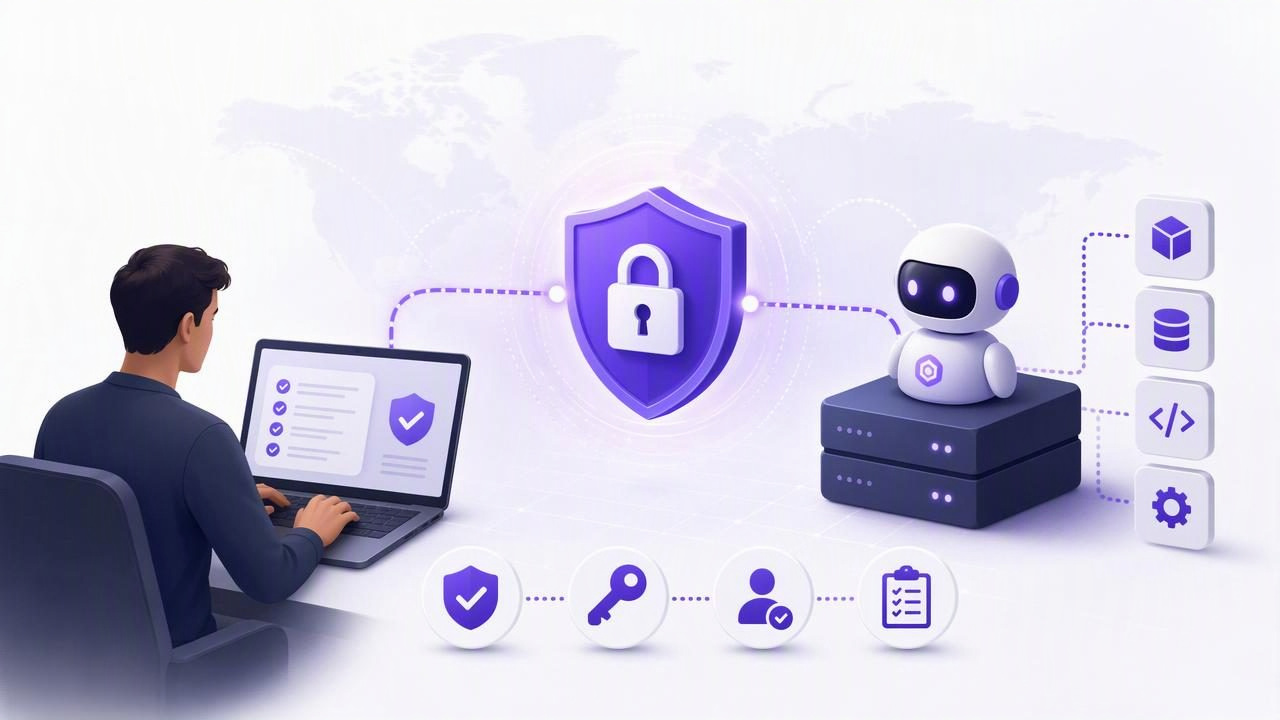
Knowing how to connect a remote MCP agent can help you delegate repetitive work without giving an AI assistant unrestricted access to your systems. Model Context Protocol (MCP) provides a structured way for compatible AI clients and agents to discover tools, read information, and—in some cases—perform approved actions through a remote server.
A remote MCP connection is useful when an agent needs access to services outside its local environment. For example, you might connect an agent to a task manager so it can review upcoming deadlines, draft a daily plan, create follow-up tasks, or update priorities after you approve a workflow.
However, a successful connection is not just about getting an endpoint URL to work. You also need to consider authentication, permissions, token storage, testing, revocation, and the limits of what an agent should be allowed to do. This guide walks through a practical, security-conscious connection process.
What Is a Remote MCP Agent?
An MCP agent is an AI-powered client or workflow that uses the Model Context Protocol to interact with external tools and data sources. The agent may run inside a desktop application, a hosted environment, an automation platform, or a local development setup.
A remote MCP server is hosted over a network rather than launched as a local process on your computer. Instead of pointing your AI client to a command such as a local executable, you provide a server URL and the required authentication details.
In a task-management workflow, a remote agent connection can support actions such as:
- Reading tasks due today or this week
- Reviewing task notes and project context
- Identifying high-priority unfinished work
- Creating tasks from meeting notes or messages
- Updating due dates or priorities when authorized
- Preparing a proposed daily plan for human review
The important distinction is that an agent does not receive broad access merely because it can connect. Access should be determined by the token and permissions issued by the service behind the MCP server.
Before You Connect: Confirm the Four Essentials
Before changing any client configuration, collect the information your remote MCP provider documents. Do not guess endpoint paths, authentication headers, or tool names. Remote MCP implementations can differ significantly.
| Requirement | What to Confirm | Why It Matters |
|---|---|---|
| Server URL | The documented HTTPS endpoint for the MCP server | Prevents connection failures and accidental use of an unofficial endpoint |
| Transport method | Whether the service uses the transport supported by your AI client | Clients may support different remote connection methods |
| Authentication | How to supply an API key, bearer token, OAuth credential, or other secret | Ensures the server can identify and authorize the agent |
| Permission scope | Whether the credential is read-only or can write data | Reduces the consequences of an agent mistake or leaked token |
You should also verify that the AI client you plan to use supports remote MCP servers. A client may support local tools but not remote connections, or it may require a particular configuration format. Check its official setup documentation before continuing.
Step 1: Define the Agent’s Exact Job
The safest remote MCP setup begins with a narrow purpose. Avoid creating a powerful token first and deciding how to use it later. Instead, describe one specific job the agent should perform.
For example, a useful starting assignment could be:
Every weekday morning, review my tasks due in the next three days and create a concise planning summary. Do not create, complete, delete, or reschedule tasks.
This assignment only needs read access. Giving the agent write access would add risk without improving its ability to complete the requested work.
Once that workflow is reliable, you might create a separate write-enabled credential for a tightly defined action, such as creating new follow-up tasks from a meeting transcript. Separating read and write workflows makes audits and revocation easier.
Step 2: Create a Dedicated, Revocable Credential
Use a credential created specifically for the remote agent. Do not reuse your personal password, a general account API key, or a token shared by multiple unrelated automations.
A dedicated agent token provides several practical benefits:
- You can identify which agent or workflow uses it.
- You can revoke it without disrupting your own access.
- You can issue different tokens for different permission levels.
- You can replace one compromised credential without rebuilding every integration.
Choose read-only access whenever the agent only needs to inspect information. Use read and write access only after you have a clear need for the agent to make changes. This is the principle of least privilege: grant only the minimum access required for the task.
Be careful with assumptions about scope. A filter such as a list identifier may help an agent focus on relevant tasks, but a query filter is not necessarily an authorization boundary. Treat the permissions attached to the token—not the agent’s prompt or filtering instructions—as the real security control.
Step 3: Add the Remote Server to Your MCP Client
The exact interface differs by client. Some AI clients provide a settings screen where you add a remote MCP server, while others use a configuration file or an environment-variable setup. In every case, enter only the values published by the MCP provider.
A conceptual configuration often includes these components:
{
  "name": "daily-planning-agent",
  "server_url": "https://example.com/documented-mcp-endpoint",
  "authentication": {
    "type": "bearer_token",
    "token": "YOUR_DEDICATED_AGENT_TOKEN"
  }
}
This example is illustrative, not a universal MCP configuration format. Your client may use different field names, a separate secrets manager, OAuth authorization, or another authentication mechanism.
When entering the credential, follow these rules:
- Store the token in the client’s secure secret store when one is available.
- Never paste the token into an agent prompt, chat message, note, or source-code repository.
- Do not include tokens in screenshots, support tickets, or screen recordings.
- Use environment variables or encrypted secret management for developer-managed deployments.
Step 4: Connect and Inspect Available Tools
After saving the server configuration, connect from the AI client and inspect the tools the server exposes. A properly configured client may show available tools, capabilities, or a connection status. If it cannot connect, start with the basics: confirm the server URL, verify the token has not been copied with extra spaces, and check whether your network allows the connection.
Do not immediately ask a write-enabled agent to reorganize your entire workload. First, use a harmless read-only request that produces a result you can verify manually.
For a task workflow, try a prompt such as:
Use the connected task tools to list tasks due in the next three days. Group them by due date and show priority where available. Do not modify anything.
Compare the answer with your task list on iPhone, iPad, or Mac. Check task titles, dates, priorities, and notes for accuracy. This validates both the connection and the agent’s interpretation of the available tools.
Step 5: Test Write Access With One Reversible Action
If you truly need the agent to create or update tasks, test that capability separately from your read-only workflow. Use a dedicated write-enabled token and a low-impact test item rather than a real project deadline.
For example:
- Create a temporary list or choose a non-critical test area.
- Ask the agent to create one clearly labeled task: Test—review remote MCP connection.
- Verify the task title, due date, priority, notes, and placement manually.
- Ask the agent to update one field, such as adding a note.
- Delete the test task yourself or with a separately approved action.
This process reveals whether the agent makes unexpected assumptions about dates, time zones, task fields, or list organization. It also helps you determine whether your instructions are sufficiently precise.
Common Remote MCP Connection Problems
Authentication errors
An invalid, expired, revoked, or incorrectly formatted token can prevent connection. Generate a new dedicated token if needed instead of repeatedly exposing the old one in troubleshooting attempts.
Unsupported client transport
Your MCP provider may offer a remote server, but your chosen AI client may not support that transport method yet. Check both sets of documentation. A local MCP setup and a remote MCP setup are not always interchangeable.
Overly broad permissions
If a connection works but the agent can change more than intended, stop using that token. Revoke it, issue a less-privileged replacement, and retest from a read-only baseline.
Prompt instructions mistaken for security controls
Telling an agent “only edit List A” is useful operational guidance, but it is not the same as enforcing authorization. Prompts can be misunderstood, altered, or overridden by later instructions. Real protection comes from service-side permission controls and revocable credentials.
Maintain a Safe Human-Agent Task Workflow
A remote MCP agent works best when it supports a reviewable process rather than silently taking over your planning. Keep people responsible for commitments, deadlines, and high-impact changes.
A practical workflow might look like this:
- Morning: A read-only agent summarizes due dates, priorities, and blocked tasks.
- Planning: You choose what to defer, delegate, or complete.
- Capture: A write-enabled agent creates draft follow-up tasks from approved meeting notes.
- Review: You check new tasks, due dates, and priorities before relying on them.
- Cleanup: Revoke tokens for agents or workflows you no longer use.
Use distinct tokens for distinct agents where possible. For instance, a daily-summary agent should not need the same credential as an automation that creates tasks. This separation reduces exposure and makes it easier to understand which workflow made a change.
Limitations to Keep in Mind
Remote MCP does not guarantee that an agent will understand every instruction perfectly. Agents can misread vague requests, select the wrong due date, miss context stored outside the connected system, or produce incomplete summaries. Network outages, client updates, expired tokens, and service-side changes can also interrupt an otherwise valid setup.
For that reason, avoid delegating irreversible or high-stakes decisions to an agent without review. Keep confirmation steps for deleting tasks, changing major deadlines, completing critical work, or handling sensitive notes. Revisit active tokens regularly and revoke access promptly when an agent, device, or workflow is no longer trusted.
Connect Carefully, Then Expand Gradually
Learning how to connect a remote MCP agent is ultimately about creating a reliable boundary between useful automation and unnecessary access. Start with a narrowly defined task, use a dedicated read-only credential, validate the connection with a harmless request, and add write access only when it is genuinely required.
For task workflows that need account-scoped tokens with read-only or read-and-write choices, review TaskPort’s documented agent permission guidance before connecting an agent.
