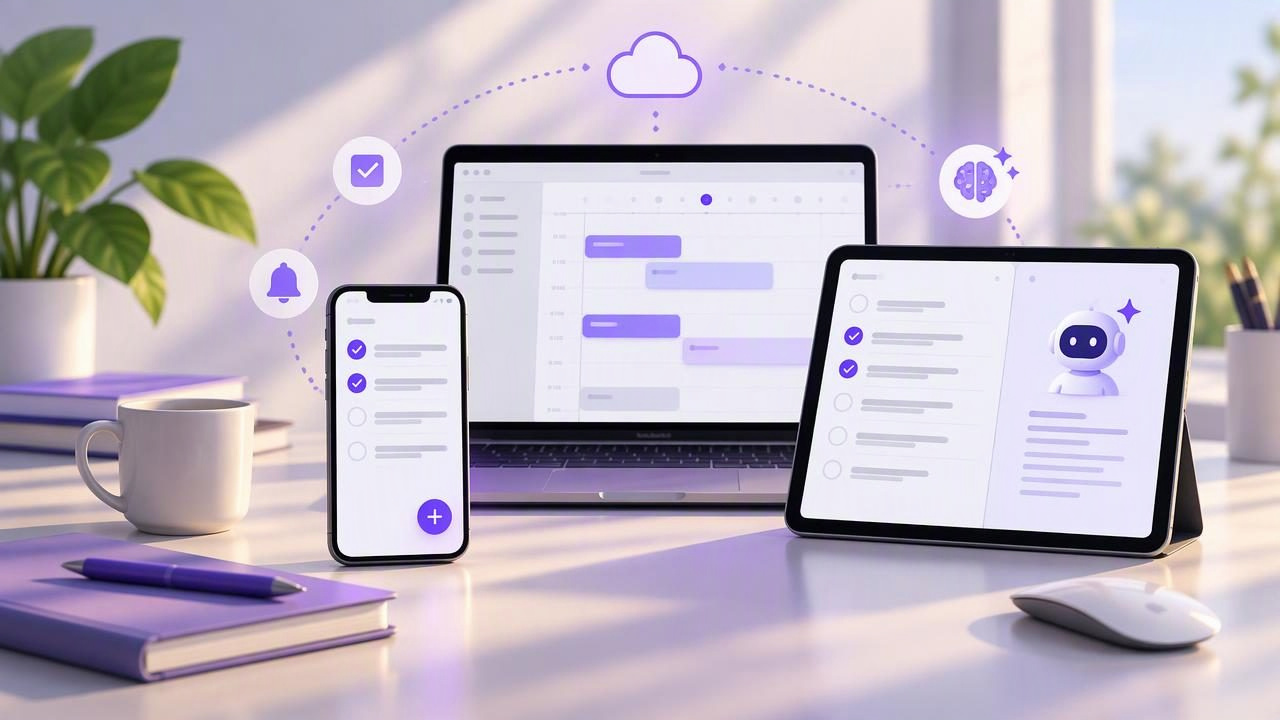
A daily planner for iPhone, iPad, and Mac should make it easier to decide what to do next—not create another place to maintain. The right setup gives you a clear view of tasks, due dates, priorities, and notes wherever you plan your day. If you use AI agents, it may also let you delegate defined work without handing over your account credentials.
Choosing a planner is less about finding the longest feature list and more about matching the tool to your routine. Consider how you capture tasks, move between Apple devices, review priorities, and protect your information. Then test the workflow with a real day rather than an elaborate sample project.
Start with the way you plan
Before comparing apps, write down what your planner needs to help you do. A useful starting list might include capturing quick tasks on iPhone, reviewing the day on Mac, and organizing a larger project on iPad. You might also need reminders for time-sensitive work, subtasks for multi-step tasks, or notes that keep instructions close to the task.
Separate essential needs from nice-to-haves. For example, seeing due dates across devices may be essential, while a particular view or visual theme may be optional. This makes it easier to reject tools that look impressive but do not fit your actual planning habits.
- Capture: Can you add a task quickly when an idea occurs?
- Organize: Can you group tasks into useful lists and break projects into smaller steps?
- Prioritize: Can you tell what deserves attention today?
- Follow through: Can you set due dates and reminders where needed?
- Review: Can you scan and update your plan on the devices you use?
Look for a consistent experience across iPhone, iPad, and Mac
A planner designed for multiple Apple devices should fit more than one screen size. On iPhone, you may need a fast way to capture an errand or check the next task while away from your desk. On iPad, a larger display can make it easier to review lists and project steps. On Mac, you may prefer to organize work alongside documents, messages, and other desktop tasks.
Check whether the planner is available on each device you intend to use, and confirm how its data stays consistent between them. Do not assume that an app’s presence on several platforms automatically means every change appears everywhere in the way you expect. Look for clear information about account setup, syncing, and any limitations that could affect your routine.
Try a simple test: add a task on one device, update its due date on another, and then check that the change is reflected where you expect. Repeat this with a note or subtask if those are important to your workflow. A small practical test can reveal more than a long feature checklist.
Keep the daily list simple enough to use
A simple to-do list is often more useful than a complicated planning system that takes too long to maintain. Start with a few clear lists, such as “Today,” “Work,” and “Personal,” or use categories that already make sense to you. Avoid creating a separate list for every short-lived idea unless that separation helps you find and act on tasks.
Write task names as specific actions. “Prepare presentation” is broad; “Draft the opening slide” is easier to start. For a larger task, add only the subtasks that clarify the next steps. This keeps the main list readable while preserving enough detail to make progress.
Use notes for context that would otherwise clutter a task title. A note can hold a brief instruction, a question to answer, or a detail you need before beginning. Keep it concise: the purpose is to reduce searching, not to turn each task into a document.
Use due dates and priorities with intention
Due dates and priorities solve different problems. A due date indicates when something needs to be completed or reviewed. A priority helps distinguish relative importance. Setting both on every task can make them less informative, so reserve them for tasks where the distinction matters.
Assign a due date when there is a genuine deadline, appointment, or time-based commitment. If a task is simply something you hope to do soon, placing it on a short-term list may be more honest than giving it an arbitrary deadline. That reduces the risk of a planner filling up with overdue items that no longer communicate urgency.
At the start of the day, choose a small number of meaningful priorities. Keep the rest of the list visible without treating every item as equally urgent. If plans change, update the list rather than keeping an unrealistic schedule just because it was written down earlier.
Build a daily planning routine you can repeat
A planner works best when you return to it at predictable times. A short morning review can help you select priorities, check deadlines, and identify tasks that depend on someone else. A brief end-of-day review can help you decide what to reschedule, close completed work, and capture anything you might otherwise forget.
- Capture: Add new commitments and tasks to the planner instead of relying on memory.
- Clarify: Rewrite vague items as concrete next actions.
- Sort: Put tasks in the list or category where you will look for them.
- Choose: Mark the few tasks that matter most for the day.
- Review: Adjust the plan when new information changes what is realistic.
For example, a project coordinator might add “confirm venue access” on iPhone after a call, then review it on Mac during the morning planning session. If the task requires several steps, they can add subtasks such as “email venue,” “confirm arrival time,” and “share access details.” The planner holds the actions in one place, while the coordinator still decides what to do and when.
Consider whether AI task assistance fits your workflow
Some people want a planner only for personal task management. Others want an AI agent to help organize tasks, summarize a list, or carry out clearly described updates. If you plan to connect an agent, treat that as a separate requirement rather than assuming every planner supports it.
Check the planner’s documented agent access method, supported actions, and permission choices before connecting anything. A documented integration can define what an agent is able to read or change. Do not rely on a guessed endpoint, shared login, or an informal workaround to make an agent interact with your task data.
For a concrete example, you could ask a compatible agent to review an account’s task information and identify items without due dates. With read-only access, the agent can inspect available information but should not be able to change the tasks. If you want it to create or update tasks, that requires a permission level that allows writing, and you should review the requested changes and the agent’s instructions carefully.
Understand permissions and their limits
When an app offers separate agent tokens, choose the least privilege that can accomplish the job. A read-only token is appropriate for analysis that does not require edits. Read and Write access is needed for workflows that create or modify tasks. Use separate tokens when different agents or workflows need different access, and revoke a token when it is no longer needed.
Check the scope of each token rather than inferring it from a filter. In particular, an account-scoped token remains account-scoped even if a request includes a list_id filter. A list filter can help select which tasks a request returns, but it is not an authorization boundary and does not turn an account token into a per-list permission.
That distinction matters when delegating work. If an agent should not have access to account data, filtering its requests to one list does not provide that restriction. Review the documented permission model, avoid putting tokens in public or shared locations, and remove access when your needs change.
Compare planner options with a practical checklist
Use a short comparison based on your real requirements. The table below is a starting point; the right answer depends on the features and permissions each app actually documents.
| What to check | Question to ask |
|---|---|
| Apple devices | Can I use the planner on my iPhone, iPad, and Mac? |
| Core task details | Can I organize tasks with lists, subtasks, notes, due dates, and priorities as needed? |
| Daily use | Can I capture, review, and update tasks without a complicated routine? |
| Agent access | Are supported integrations and available permissions clearly documented? |
| Security model | Are tokens revocable, and do I understand whether their access is account-scoped? |
Common planning mistakes to avoid
- Overloading today: A daily list with more tasks than you can reasonably address is hard to trust. Choose priorities and move the rest deliberately.
- Adding dates to everything: Use due dates to communicate real timing, not as a substitute for deciding what matters.
- Making lists too granular: Too many categories can slow down capture and make tasks harder to find.
- Delegating vague requests: An agent or person needs a clear task, useful context, and a defined outcome.
- Confusing filtering with security: A filtered request does not necessarily restrict what a token is authorized to access.
- Skipping review: A planner cannot reflect changed plans unless you update it.
Choose for clarity, not complexity
The best daily planner for iPhone, iPad, and Mac is one you can maintain consistently. It should make everyday tasks easy to capture, help you see priorities and deadlines, and provide enough structure for larger projects without burying the next action. If AI assistance is part of your routine, verify what the integration can do and give it only the access its task requires.
Start with a few lists and a brief daily review, then adjust the system based on what you actually use. For people looking for a shared task space across Apple devices and compatible AI agents, TaskPort’s agent permission documentation explains its Read Only and Read & Write access choices and token scope.
