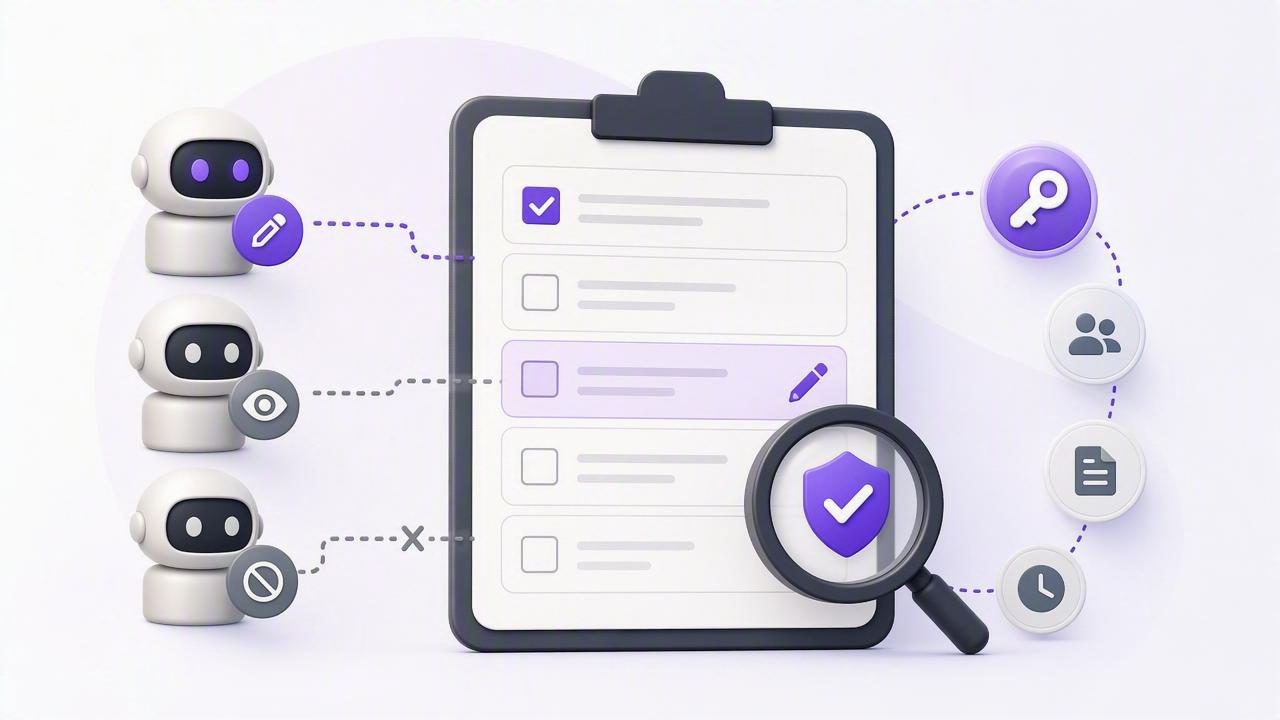
As AI assistants become part of daily planning, a simple to-do list can quickly become a shared workspace. You may ask one agent to capture meeting follow-ups, another to prioritize a project plan, and a third to check overdue reminders. That convenience raises an important operational question: which agent can edit tasks, and how can you verify it?
An effective audit is not just a technical exercise. It is a practical habit for protecting your plans, avoiding duplicate work, and keeping accountability clear when people and AI agents collaborate. Whether you use an agent with Claude, ChatGPT, Hermes Agent, OpenClaw, or another compatible tool, you need to know what access each agent has today—not what you intended it to have weeks ago.
This guide explains how to audit AI editing access in a task manager, what evidence to collect, and where the limits are. It also provides a concrete example for a daily planner containing work tasks, personal reminders, and delegated agent workflows.
Start With the Real Question: Who Can Change Data?
When auditing a to-do list app, distinguish between agents that can see tasks and agents that can change tasks. These are different permission levels with different risks.
- Read-only access: An agent can inspect task titles, notes, due dates, priorities, and completion status, but cannot create, modify, complete, or delete tasks.
- Read-and-write access: An agent can generally create tasks and make changes through the authorized connection. Depending on the supported tools, this may include updating dates, priorities, notes, subtasks, lists, or completion state.
- No active access: The agent has no usable token, its token has been revoked, or the integration is disconnected.
For an audit, the crucial category is read and write. A useful rule is: if an agent holds a currently active read-and-write credential, treat it as an editor. Do not assume that an agent is read-only because you only asked it to summarize tasks. Its actual permission level, rather than its intended job, determines what it can do.
Why This Matters in a Simple To-Do List App
Simple to-do lists are often trusted because they contain the details that shape your day: a client follow-up, a medical reminder, a deadline, a private note, or the next action for a major project. An AI agent with editing access can make planning easier, but it can also introduce confusion if the scope is unclear.
For example, an agent might move a task’s due date while reorganizing a project. That could be helpful if you requested it, but disruptive if the task was a fixed deadline. Similarly, an agent that automatically completes tasks may make a dashboard look tidy while hiding work that still requires human review.
Auditing access helps you answer practical questions:
- Which agent can create tasks from messages or meeting notes?
- Which agent can change priorities or due dates?
- Which agent should only review tasks and suggest a plan?
- Are old experiments, automations, or retired agents still authorized?
- Can you quickly revoke editing access when a workflow changes?
Build an Agent Access Inventory
The simplest way to audit editing rights is to maintain a short inventory of every agent connection. This can be a note, a spreadsheet, or an administrative checklist. The inventory should describe the credential and its purpose, not merely the agent’s name.
| Agent or workflow | Permission | Purpose | Owner | Review decision |
|---|---|---|---|---|
| Weekly planning assistant | Read only | Suggest priorities and schedule | You | Keep if still used |
| Meeting follow-up workflow | Read and write | Create action items after approved meetings | Operations lead | Review monthly |
| Old research agent | Read and write | Former experiment | You | Revoke |
| Personal planning assistant | Read only | Summarize upcoming due dates | You | Keep with limits |
Include a unique token label or identifying description where available. Avoid placing the secret token itself in the inventory. The goal is to identify credentials safely, so you can compare your record with the active tokens in the task app’s account settings.
For each connection, document the following:
- Agent name: Use a specific name, such as “Client Follow-Up Agent,” rather than “ChatGPT.”
- Permission level: Record read only or read and write exactly as configured.
- Business purpose: State the narrow task the agent is expected to perform.
- Human owner: Identify the person responsible for reviewing the connection.
- Created and last reviewed dates: These make forgotten access easier to spot.
- Revocation status: Note whether the token remains active, is scheduled for removal, or has been revoked.
Audit the Permission, Not the List Name
A common mistake is assuming that an agent is safely limited because it was instructed to work with a particular list, such as “Marketing” or “Meeting Notes.” Instructions and filters can organize work, but they are not automatically security boundaries.
In some MCP task manager designs, account tokens are account-scoped. This means the permission applies to the account connection, not to one particular list. A list_id filter may help an agent retrieve or focus on tasks from a chosen list, but it should not be treated as proof that the agent lacks access to other lists.
Audit principle: A workflow instruction that says “only edit the Project Alpha list” is useful guidance, not a substitute for verifying the token’s actual authorization scope.
This distinction is essential when your account includes both professional and personal tasks. If a token is read and write at the account level, plan on the basis that it is an account-level editor unless the product documentation explicitly guarantees narrower authorization.
A Concrete Audit Example
Imagine that you maintain three lists: Work Projects, Home, and Someday. You use a meeting assistant to turn approved meeting notes into tasks, and a separate planning agent to review your workload every Friday.
Your audit finds two active tokens:
- Meeting Capture: Read and write. Its documented purpose is to create follow-up tasks from notes you explicitly provide.
- Friday Planner: Read only. Its documented purpose is to identify overdue tasks and recommend priorities.
The result is straightforward: Meeting Capture can edit tasks; Friday Planner cannot. Even if the meeting workflow normally creates tasks only in Work Projects, do not conclude that it is technically restricted to that list merely because its prompt says so. If the token is account-scoped, its authorization deserves the same caution as any other account-level editing token.
Next, review whether the Meeting Capture workflow still needs write access. If you now prefer to copy proposed tasks manually, revoke its token and replace the workflow with read-only planning assistance. If task creation remains valuable, retain the write token but define a clear operating rule: it may create tasks from approved source material, while people review due dates, priority changes, and task completion.
Use Least-Privilege Permissions
Least privilege means giving each agent the minimum access required for its current job. In AI task management, this usually leads to more read-only agents than editing agents.
Choose read-only access when an agent needs to:
- Summarize your daily plan.
- Identify tasks that are due soon or overdue.
- Suggest priorities based on existing tasks.
- Prepare a proposed schedule for your approval.
- Answer questions about task notes, subtasks, or deadlines.
Use read-and-write access only when the workflow genuinely requires changes, such as creating approved tasks from a structured intake process or updating a task after a human-directed action. Write access is not automatically unsafe, but it requires a stronger review process and a clear owner.
Review Changes With a Human-in-the-Loop Workflow
An access audit tells you who can edit. A review workflow helps you manage what actually gets edited. For high-impact tasks, establish checkpoints before or after an agent makes changes.
A practical approach is to separate low-risk and high-risk actions:
| Action | Suggested handling |
|---|---|
| Create a draft follow-up task | May be delegated with clear source material |
| Set a hard external deadline | Require human confirmation |
| Change task priority | Review during daily planning |
| Complete a client deliverable | Require human confirmation |
| Delete a task with notes or subtasks | Require explicit human approval |
Keep task titles descriptive and put context in notes. This makes it easier to identify whether an edit aligns with the agent’s stated purpose. For instance, “Send revised contract to Alex — awaiting legal approval” is easier to review than “Email Alex.”
Know the Limits of an Access Audit
An audit cannot prove everything. It can show which credentials are active and which permission level each credential has, but it may not provide a complete historical record of every action performed by every agent. Do not claim that you can attribute a specific task edit to a specific agent unless your task system provides reliable, documented activity history that supports that conclusion.
Likewise, revoking a token stops future use of that credential, but it does not undo edits already made. Review important tasks after revocation if you suspect an unwanted change. You should also remember that an agent may retain information previously supplied in a conversation or external system, even after task-manager access is removed. Token revocation controls future access to the connected task account; it is not a universal deletion mechanism.
Create a Repeatable Monthly Checklist
A monthly review is usually enough for personal productivity systems, while teams using frequent agent workflows may need a weekly check.
- Open the list of active agent tokens.
- Match every token to an entry in your access inventory.
- Confirm whether it is read only or read and write.
- Verify the agent’s current purpose and human owner.
- Revoke tokens for pilots, former projects, or agents you no longer use.
- Downgrade write access to read-only access when editing is no longer necessary.
- Review recent task changes and important due dates for accuracy.
- Update the inventory with the review date and decision.
This process takes only a few minutes once established, yet it prevents a common failure mode in agent workflows: access that outlives the reason it was granted.
Make Delegation Clear Without Losing Control
The best human and AI agent collaboration does not rely on vague assumptions. Give each agent a named purpose, a permission level that matches that purpose, and a revocable credential. Then revisit those choices as your daily planning process changes.
If you use an MCP-enabled to-do list, review its documented token model carefully before connecting an agent. For example, TaskPort’s agent permission documentation explains the difference between account-scoped Read Only and Read & Write tokens and why list filters should not be treated as authorization boundaries.
By auditing editing access regularly, you can gain the convenience of AI task delegation while keeping ownership of your priorities, due dates, reminders, and plans where it belongs: with you.
