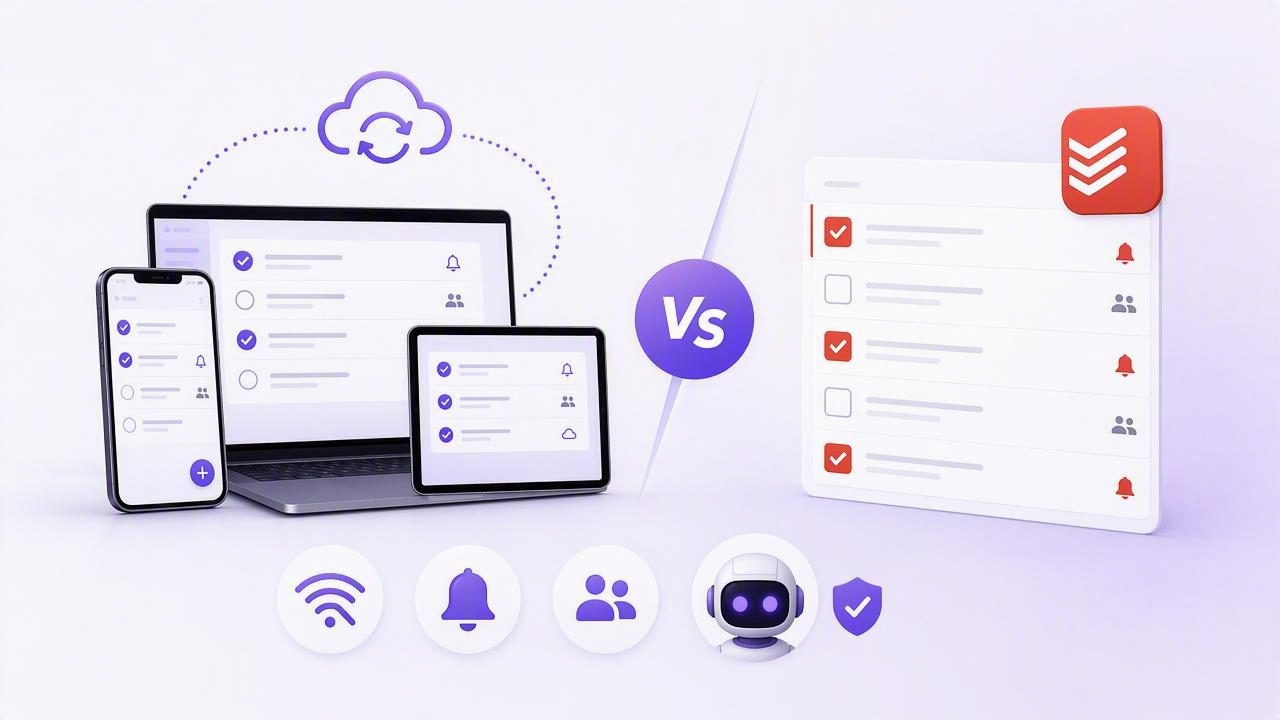
When people search for cross-device task sync vs Todoist, they are often trying to solve a practical problem: keeping tasks consistent between an iPhone, iPad, Mac, browser, and possibly a work computer. A to-do list is only useful when the task you add in one place appears reliably where you need it next.
However, cross-device sync is more than seeing the same list on multiple screens. The best setup depends on how you plan your day, how often you work offline, whether you share tasks with other people, and whether you want AI agents to help create, review, or update tasks.
This guide explains what to compare when evaluating a cross-device task manager against Todoist or any similar productivity app. Rather than treating sync as a simple checklist feature, it focuses on the workflows that determine whether a task system remains dependable in real life.
What Cross-Device Task Sync Actually Means
Cross-device task sync means your task data stays aligned across the devices and platforms you use. Ideally, a task created on your phone is available on your desktop shortly afterward, along with its due date, priority, notes, subtasks, labels, completion status, and list placement.
But “sync” can mean different things in practice. One app may synchronize a basic task title quickly but treat attachments, reminders, comments, or recurring dates differently. Another may provide native apps on selected devices while relying on a browser experience elsewhere. Before comparing tools, define what information must travel with each task.
For most users, the essential sync fields include:
- Task title and completion state: The core action and whether it is done.
- Due dates and reminders: Timing information that supports daily planning.
- Priorities: A way to distinguish urgent work from lower-impact tasks.
- Lists or projects: Context such as Work, Personal, Errands, or Client A.
- Subtasks: Smaller actions that make large projects manageable.
- Notes: Supporting details, links, instructions, or meeting context.
If any of these details disappear, lag behind, or display differently on another device, your daily planning system can become unreliable.
Cross-Device Task Sync vs Todoist: Core Comparison Areas
Todoist is widely known as a task management option with broad platform availability and shared project features. Still, the right comparison is not simply “does another app sync?” Instead, evaluate the way each system fits your devices, planning habits, and collaboration needs.
| Comparison area | Questions to ask | Why it matters |
|---|---|---|
| Device coverage | Which phones, tablets, computers, and browsers do you use daily? | A task manager is easier to trust when it is available at every point where work happens. |
| Sync speed and clarity | How quickly do edits appear elsewhere? Is there a visible refresh or conflict state? | Fast, understandable sync reduces duplicate work and mistaken completions. |
| Native experience | Does the app feel designed for the operating system, including widgets, keyboard shortcuts, and notifications? | Native workflows can reduce friction during quick capture and review. |
| Offline behavior | Can you add or edit tasks without a connection, and what happens when you reconnect? | Travel, poor Wi-Fi, and transit should not interrupt task capture. |
| Task detail | Can tasks hold subtasks, notes, priorities, due dates, and useful context? | Detailed tasks prevent a list from becoming a collection of vague reminders. |
| Collaboration | Who can see or edit shared work, and how are changes communicated? | Teams and households need clear ownership and expectations. |
| AI access controls | Can an AI agent receive limited, revocable access to task data? | Automation is more useful when access can be reviewed and removed. |
Start With Your Device Reality
Your best app depends on where you actually look at tasks. A person who captures errands on an iPhone, plans on an iPad, and completes focused work on a Mac has different needs from someone who primarily works in a browser across Windows and Android devices.
For an Apple-focused workflow, evaluate whether the iPhone, iPad, and Mac apps provide a consistent but appropriately tailored experience. On iPhone, quick capture, notifications, and widgets may matter most. On iPad, split-screen planning and drag-and-drop can be more important. On Mac, keyboard shortcuts, larger task views, and rapid editing may shape your daily workflow.
If you use Todoist alongside another app, do not assume both will support the same device features in the same way. Compare the experience on the specific devices you own. A feature that is excellent in a web app may be less convenient from a mobile notification, and a quick iPhone capture flow may not translate into an efficient desktop review process.
Test Sync With a Realistic Scenario
Feature lists do not reveal much about cross-device task sync. A simple test does. Use a realistic task that includes the information you normally need, then edit it from several devices.
For example, imagine you are preparing a client presentation:
- On your iPhone, create a task called Finish client presentation.
- Add a due date for Thursday, set a high priority, and place it in a Work list.
- Add subtasks: Confirm metrics, Update slides, and Practice opening.
- Add a note containing the presentation link and a short briefing instruction.
- On your Mac, confirm that every field appears correctly and complete one subtask.
- On your iPad, change the due date and verify that the change returns to your phone.
This test surfaces important details. Does the note remain attached? Are completed subtasks preserved? Does the due date update correctly? Can you tell which version of a task is current? A task manager that handles this scenario cleanly is more likely to support a dependable daily planning habit.
Consider Offline Work and Sync Conflicts
Offline support is easy to overlook until you need it. You may capture tasks on a flight, edit a grocery list in a store with weak reception, or work from a location with unstable internet. The key question is not only whether the app opens offline, but whether it safely retains changes and reconciles them after reconnecting.
Conflicts can happen when the same task is edited from more than one device before syncing. For example, you might change a due date on an iPad while an assistant edits the same task on a desktop. Review how a tool communicates changes, whether it keeps the newest update, and whether it gives you a way to notice unexpected edits.
No sync system can eliminate every conflict caused by simultaneous editing. The practical goal is visibility: clear task state, understandable updates, and a habit of reviewing important changes before acting on them.
Compare Daily Planning, Not Just Task Capture
Task capture is the first step, but daily planning determines whether tasks get finished. When assessing Todoist or another cross-device to-do list, ask how easy it is to turn a large backlog into a realistic day.
A useful daily planning workflow usually includes:
- Reviewing overdue and due-today tasks without losing longer-term work.
- Choosing a small number of high-priority actions.
- Adding due dates only when they represent a real commitment.
- Breaking ambiguous tasks into clear subtasks.
- Keeping project notes close to the relevant action.
- Reviewing completed work before planning tomorrow.
Do not confuse reminders with a complete planning system. A reminder can tell you that a task exists, but a good daily view helps you decide what to do next. If every task has the same urgency, neither cross-device sync nor notifications will solve the prioritization problem.
Shared Tasks and AI Agent Workflows
Modern task management may involve more than one human. You may share a list with a partner, coordinate with a colleague, or ask an AI agent to turn meeting notes into follow-up tasks. This adds a new comparison category: who can access task data and what they are allowed to change.
For human collaboration, look for clear task ownership, visible updates, and a process for resolving edits. For AI task management, focus on security before convenience. An agent should receive only the access required for its job, and that access should be removable when the work ends.
Consider this workflow: after a weekly meeting, an AI agent reads your meeting summary and drafts five follow-up tasks. You review the task names, assign due dates, and decide which items deserve high priority. If the agent can write to your task system, it should not automatically receive unrestricted, permanent access merely because it needs to create a few tasks.
Useful safeguards include separate tokens for separate agents, a choice between read-only and read-and-write access, regular token reviews, and immediate revocation when an integration is no longer needed. Importantly, filtering tasks by a list or project is helpful for organization, but it should not be mistaken for a security boundary unless the product explicitly documents it as one.
Limitations of Any Cross-Device Task System
Even the strongest cross-device setup has limits. Sync requires accounts, network access at some point, and compatible software versions. Notifications can be delayed or disabled by device settings. A shared task can still be misunderstood if its title lacks context. AI-generated tasks can be incomplete, incorrectly prioritized, or based on an imperfect summary.
That means task management still benefits from human review. Use specific verbs, attach short notes where needed, and check important due dates before relying on reminders. Automation can accelerate capture and organization, but it does not replace judgment.
How to Make a Confident Choice
Choose a cross-device task manager based on the workflow you need every week, not the longest feature list. If you rely on browser and multi-platform access, make that a primary requirement. If you live in the Apple ecosystem, test the iPhone, iPad, and Mac experience carefully. If AI agents will participate, make revocable permissions and access visibility part of your evaluation from the start.
For users who want a native Apple task workflow with shared human-and-agent task management, TaskPort’s agent permission documentation explains its account-scoped tokens, including Read Only and Read & Write options. Whichever tool you choose, run the realistic multi-device test, review its limitations, and build a daily planning routine that keeps your task list useful rather than merely synchronized.
