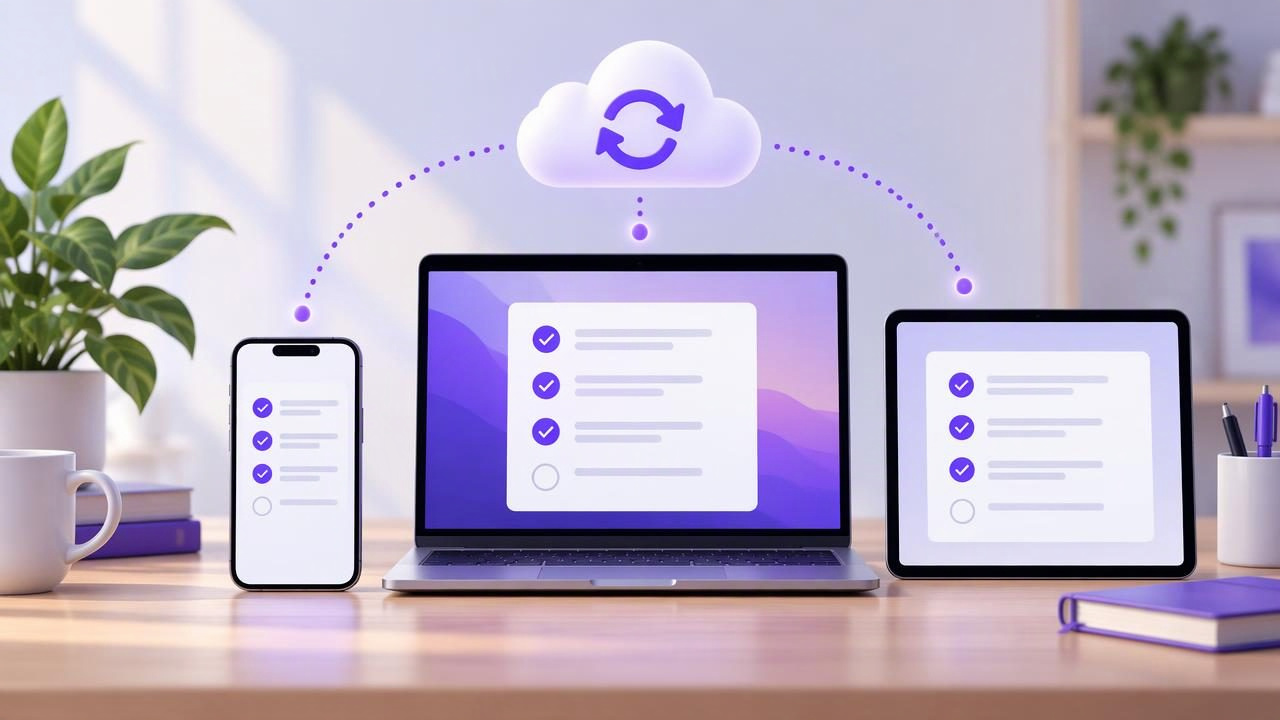
A task you add on your phone should be easy to find when you sit down at your computer. Cross-device task sync helps keep your to-do list consistent across devices, so you can capture reminders on the go and plan your day wherever you work. But syncing can feel confusing when a task appears late, shows up twice, or is missing from one screen.
The good news: a dependable setup usually starts with a few simple habits. Use one main task list, check that your devices are signed in to the same account, and understand what sync can—and cannot—do. This guide walks through the basics for beginners, with an example workflow for iPhone, iPad, and Mac.
What cross-device task sync does
Task sync updates the same task information across devices connected to an account or shared workspace. Depending on the app, that information may include task names, notes, due dates, priorities, subtasks, and list membership. Add a task on one device, and a change should become available on the others once the app has a connection and syncs successfully.
Sync is different from a notification. A reminder alert tells you that a task needs attention; syncing makes the task data available elsewhere. It is also different from a backup. Sync keeps devices up to date, while a backup is meant to help restore information after loss or deletion. An app may offer one, both, or neither, so check its documentation rather than assuming.
Start with one source of truth
For beginners, the simplest system is usually one main task app and one account across your devices. If you split tasks among several apps, inboxes, and handwritten notes, you may have to remember where each item lives. That makes it harder to trust your list and easier to miss a commitment.
Choose where each kind of task belongs. For example, keep actionable work and personal errands in your task manager, while using a calendar for appointments with a fixed time. A calendar event and a task can be related, but they serve different purposes: one reserves time; the other records something to do.
- Pick a primary app: Decide where new tasks should go by default.
- Use a small number of lists: Create lists for useful distinctions, such as Work and Home, rather than making a list for every project detail.
- Capture first, organize later: Add a task to a quick-capture or inbox list, then sort it during a planning session.
Set up each device carefully
Before troubleshooting a missing task, check the basics on every device. Confirm that the app is installed, you are signed in to the intended account, and the device has an internet connection. If an app has a sync setting, make sure it is enabled. Keep the app and operating system reasonably up to date, since older versions can behave differently from current ones.
Do not assume that being signed in to the same phone or computer account automatically connects every task app. Some apps use their own login; others rely on a platform account or a workspace invitation. Compare the account or workspace shown inside the app on each device. If you use more than one account, label or note which one holds your personal tasks and which holds work tasks.
| Check | Why it matters |
|---|---|
| Same app account | Different accounts may show separate task collections. |
| Connection and sync status | A device may need connectivity before recent changes appear. |
| List or workspace selection | A task can exist but be hidden by the current view or filter. |
| App permissions and updates | Settings or an outdated version may affect how the app works. |
Try a simple cross-device test
After setup, test the workflow with a low-stakes task before relying on it for something important. On your iPhone, add “Review grocery list,” set a due date for tomorrow, and place it in your Home list. Open the app on your iPad or Mac and check whether the task, date, and list match. Then change the task name on just one device and see whether the update appears on the others.
This small test helps you learn what successful syncing looks like in your app. It also shows whether some fields update differently or whether you need to refresh the view. Avoid testing with a critical deadline or deleting important tasks; the goal is to confirm the basic path without creating unnecessary risk.
Make tasks easy to recognize everywhere
Sync can move information between screens, but it cannot make an unclear task actionable. Use a short verb-led name, such as “Send the draft to Maya,” rather than “Draft.” Add a note when the next step needs context, and use a due date only when there is a real deadline or a date you want to review the task.
Priorities can help distinguish urgent work from everything else, but too many high-priority items make the label less useful. Choose a small set of priority levels and apply them consistently. Similarly, use subtasks when a task has distinct steps that need tracking, not as a way to turn every small action into a separate project.
These choices matter on smaller screens. A task with a clear name and date is easier to scan on an iPhone, while a longer note may be more comfortable to review on an iPad or Mac. Aim for enough detail to act without making every entry difficult to maintain.
Understand offline changes and conflicts
Some apps allow you to view or edit tasks while a device is offline and send changes when it reconnects. Others may limit offline access. The behavior depends on the app, so do not assume that an edit made without a connection has already reached your other devices. Look for a sync indicator, reconnect, and confirm that the change appears elsewhere.
If you edit the same task on two devices before they sync, the app may resolve the changes automatically, show a conflict, or keep one version. The exact rule is app-specific. When a change matters, pause and check which device has the latest version before editing again. If you see duplicates, compare their notes and dates before removing either one; one may contain the newer information.
Separate sync problems from reminder problems
A task can sync correctly even when its alert does not appear. If the task is visible on all devices but you did not receive a notification, check notification permissions, Focus or Do Not Disturb settings, the task’s reminder time, and whether alerts are enabled for that app. Also check time zone and date settings if a reminder seems to fire at an unexpected time.
Conversely, receiving a notification does not prove that every device has the latest task details. Open the app and confirm the task itself. Treat alerts as helpful prompts, not as your only record of a deadline.
Use a lightweight daily routine
A short routine makes a synced list more useful without adding much maintenance. In the morning, review tasks due today and choose a few realistic priorities. During the day, capture new commitments on the device you have with you. At the end of the day, check that important changes have appeared on your other devices and move unfinished work to an appropriate date only if that date is realistic.
- Morning: Review today’s tasks and confirm the most important next actions.
- During the day: Capture tasks promptly, using one default list or inbox.
- Evening: Review unfinished items, clarify dates, and check for duplicates.
Keep the routine flexible. You do not need to review every list every day, and not every task needs a due date. The purpose is to make the next action visible and reduce uncertainty about where your information lives.
If an AI agent can access your tasks
Some task managers also let an authorized AI agent read or update tasks. That adds another participant to the shared workflow, so use the same care you would when giving a person access: decide what the agent should do, grant only the permission needed, and review changes that affect deadlines or priorities.
Check how access is scoped before connecting an agent. For example, an account-level token may apply across the account, even if a request includes a particular list filter. A filter can help select which tasks to work with, but it is not necessarily an authorization boundary. Do not treat it as a substitute for access controls. If the service offers separate read-only and read-and-write permissions, choose deliberately, keep credentials private, and revoke access when it is no longer needed. Exact capabilities and setup steps vary by service, so use its current documentation.
For instance, you might ask an agent with read-only access to summarize tasks due today, then make any changes yourself. If you authorize write access for a defined workflow, review the results on your usual device rather than assuming every proposed change is correct. A shared task list can support human and AI collaboration, but clear permissions and human review remain important.
Build a system you can trust
Reliable cross-device task sync is less about complicated settings and more about a consistent source of truth. Sign in to the right account, test a small change on multiple devices, use clear task names, and verify important updates when connectivity returns. Keep reminders, due dates, and sync behavior distinct in your mind, and check app-specific documentation whenever the details are uncertain.
If you want a native task manager for iPhone, iPad, and Mac that can also be shared with authorized agents, TaskPort’s agent permission documentation explains its read-only and read-and-write token choices. Whatever app you use, a simple, regularly reviewed list is easier to trust than a complicated system you rarely maintain.
